 Skip to content

Quick setup
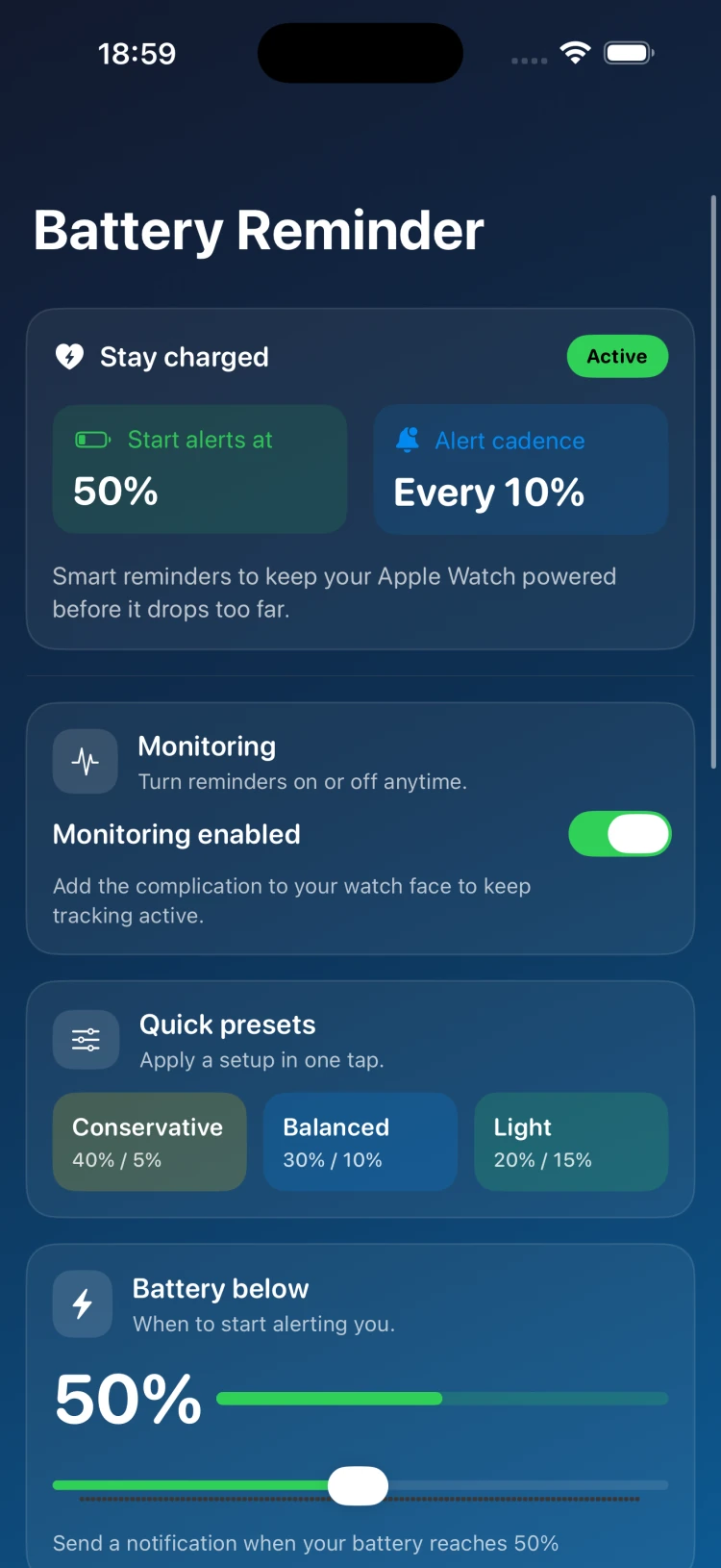
- Turn on Monitoring in the app and add a Battery Reminder complication to a watch face you use daily. This keeps background checks active.
- Set Battery Below to the level where you want the first alert (e.g., 40% if you recharge in the evening, 30% if you prefer fewer alerts).
- Choose Alert cadence (Every X%) for follow-up reminders after the first alert—5% for tight tracking, 10–15% for lighter nudges.
Recommended presets
- Conservative (40% / 5%): Best when you need all‑day confidence and frequent nudges.
- Balanced (30% / 10%): Good default—alerts when you’re getting low without too much noise.
- Light (20% / 15%): Minimal interruptions; use when you know a charger is nearby.
Get reliable alerts
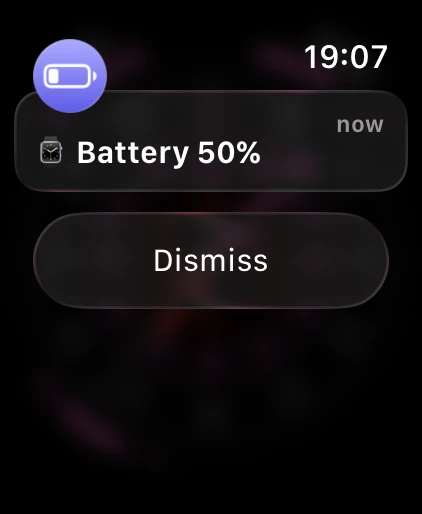
- Keep Monitoring enabled and make sure Apple Watch notifications for the app are allowed in Settings ▸ Notifications.
- Complications must stay on an active watch face for background reads; put one on a face you glance at often.
- If you changed thresholds or cadence, give the watch a moment—updates sync via the complication and app.
When to charge
- Commute days: Use Conservative so you never hit low battery between stops.
- Gym sessions: Set Balanced and charge once you get a 30% alert post‑workout.
- Travel: Drop cadence to 5% so you get closer tracking while on the move.
Troubleshooting
- Not getting alerts? Re-enable Monitoring, ensure the complication is on-screen, and confirm notification permissions on the watch.
- Battery level looks wrong? Open the app once to refresh readings, then keep the complication visible.
- Too many alerts? Lower the Battery Below threshold or increase the Every X% cadence interval.
Need more help?
Email support@rs.ltd with your watch model, watchOS version, and the thresholds/cadence you’re using. Include a screenshot of your complication if possible so we can spot setup issues quickly.