 Skip to content

Remote Mouse & Keyboard turns an iPhone or iPad into a local-network mouse, trackpad, and keyboard for a Windows PC. It is designed for same-room control: a living-room PC, laptop connected to a projector, media computer, or desktop that is just out of reach.
Quick Answer
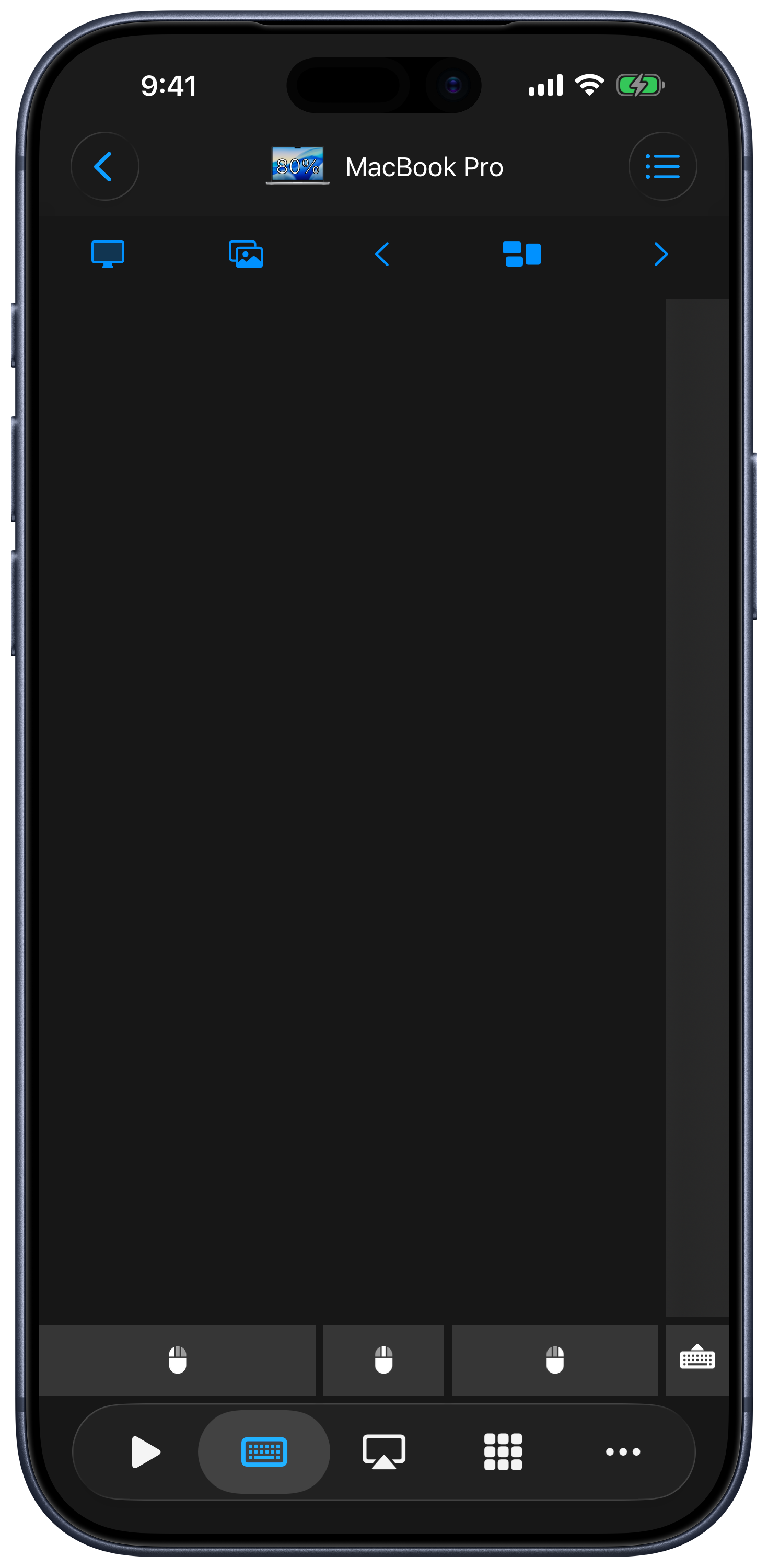
Yes, you can use an iPhone as a mouse for Windows. Install Remote Mouse & Keyboard on the iPhone, install the free Remote Helper on the PC, connect both devices to the same Wi-Fi network, and select the PC in the app. The Input screen handles pointer movement, left and right clicks, scrolling, dragging, and keyboard input.
How to Set It Up
- Install Remote Mouse & Keyboard on iPhone or iPad.
- Download and open Remote Helper on the PC from rs.ltd/get.
- Put the iPhone and PC on the same Wi-Fi network or personal hotspot.
- Open the iPhone app and choose the Windows PC.
- Open Input and use the screen as a trackpad.
If the PC does not appear, confirm Remote Helper is running and follow the Windows Firewall guide.
Mouse and Trackpad Controls
- Move the Windows pointer with one finger.
- Send left, right, and middle clicks.
- Scroll vertically or horizontally.
- Drag files, windows, sliders, and selections.
- Open the iPhone keyboard when you need to type.
- Use Live View when you need visual context from the PC screen.
See the mouse and keyboard control guide for gesture and settings details.
What It Is Best For
- Controlling a Windows PC connected to a TV.
- Moving through slides from across a room.
- Pausing media or typing a search from the couch.
- Quick pointer input when a hardware mouse is unavailable.
- Using an iPad as a larger wireless trackpad.
Important Limits
This is a network remote, not a Bluetooth HID mouse. Remote Helper must be installed and running, and Windows must be awake and reachable. Guest Wi-Fi, client isolation, VPNs, and firewall rules can prevent discovery. Keep a hardware mouse or keyboard for BIOS, BitLocker, recovery, and other states before Windows and Remote Helper are available.
Related Windows Guides
- Best iPhone mouse app for Windows
- Control a Windows PC from iPhone
- Remote keyboard for Windows
- iPhone media remote for Windows
iPhone Mouse for Windows FAQ
Can I use an iPad instead?
Yes. The same app works on iPad and provides a larger trackpad and keyboard surface.
Is internet access required?
No. The remote connection stays on the local network. The devices still need a Wi-Fi network or personal hotspot that allows them to communicate.
Why can the app see the PC but not connect?
Check the Windows network profile and firewall permission for Remote Helper. Use a trusted Private network and allow the helper on private networks rather than disabling the firewall.
Common questions
Can I use my iPhone as a mouse for a Windows PC?
Yes. Remote Mouse & Keyboard turns iPhone or iPad into a wireless trackpad, mouse, and keyboard for Windows when Remote Helper is running and both devices share a local network.
Does the iPhone connect as a Bluetooth mouse?
No. Computer control uses the local network or a personal hotspot and requires Remote Helper on Windows.
Does it work without internet?
Yes. Internet access is not required for local control as long as the iPhone and Windows PC can communicate on the same network.