 Skip to content

Start with your existing Finale installation
Finale KeyPad is a touch keypad for sending notation shortcuts to Finale on your computer. It does not include Finale or replace the desktop notation software.
Before setting up the keypad, open Finale on your computer and confirm that your score and keyboard input work there.
Connect the keypad
- Install and open Remote Helper on your Mac or Windows PC.
- Connect your computer and iPhone or iPad to the same Wi-Fi network or Personal Hotspot.
- Open Finale KeyPad, choose the computer, and approve access in Remote Helper when prompted.
- Make Finale the active app on the computer, then try a familiar notation shortcut from the keypad.
If you connect successfully but keys do nothing, check the helper’s input permissions on Mac or its firewall access on Windows.
Check shortcuts in context
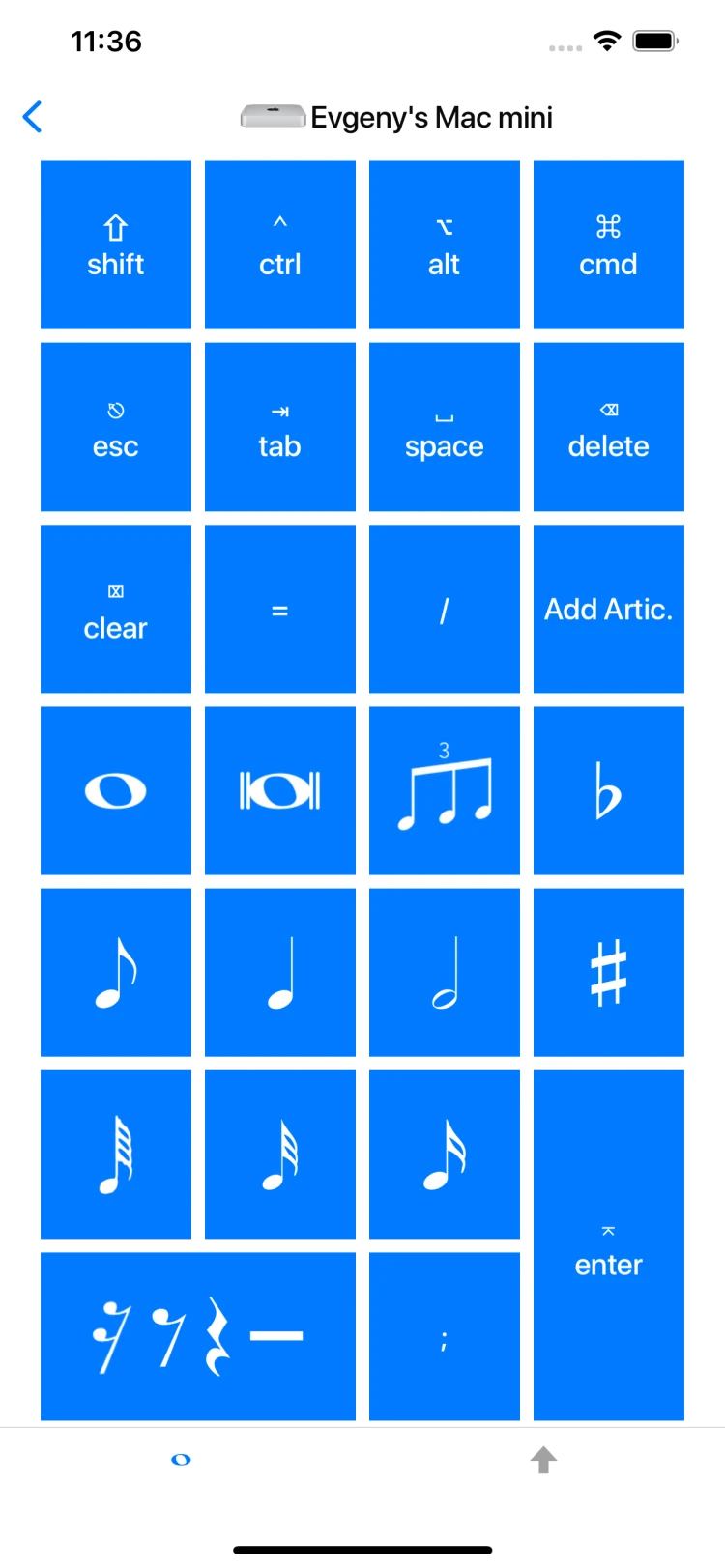
The result of a shortcut depends on Finale’s active tool, selection, and keyboard settings. First verify the expected action using your computer keyboard, then try the keypad button.
Get help
Use the connection guide for network issues. For a keypad question, contact support with the Finale version, computer operating system, and exact action you are trying to send.