 Skip to content

What you need
Install Remote KeyPad & NumPad on your iPhone or iPad and Remote Helper on your Mac or Windows PC. Put both devices on the same local network. The computer can use Ethernet if it reaches the same network as your mobile device.
Connect your computer
-
Open Remote Helper
On your Mac or Windows PC.
-
Choose your computer
In the app on your iPhone or iPad.
-
Approve and try a key
Allow the connection, then focus the desktop app you want to control.
Detailed connection steps
- Open Remote Helper on the computer.
- Open Remote KeyPad & NumPad on your iPhone or iPad and choose your computer.
- Allow Local Network access on your mobile device when asked.
- Approve the connection in Remote Helper when prompted. On Mac, also grant the input-control permission requested by the helper.
- Open the desktop app you want to use and select a field before sending number or keyboard input.
For connection details, permissions, and manual addressing, see the connection guide.
Choose your keypad
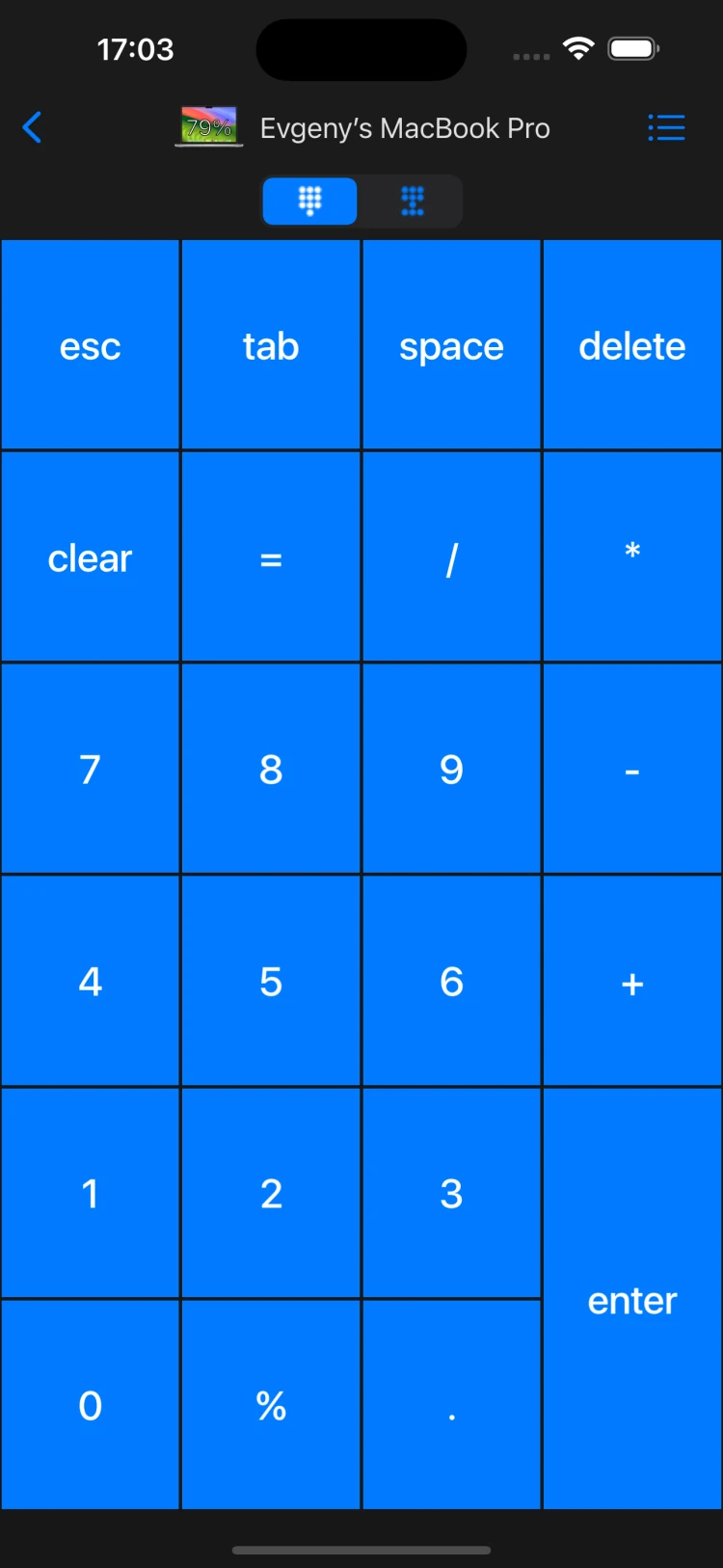
Start with the number block for spreadsheets or the navigation block for moving through documents. Create custom keypads for keyboard shortcuts in your desktop apps. The intended app or field should be active on your computer when you send a shortcut.
If keys do not appear
First check that the app is connected. Then click a text field on the computer and try a single number. If input still fails, review the helper’s permissions on Mac or firewall setup on Windows.
If a custom shortcut triggers the wrong action, check the shortcut in the desktop app and whether it expects Mac or Windows modifier keys.
Already using the Pro edition?
The same helper and shared-network requirements apply. Open the edition you purchased. See the Pro listing or contact support for purchase questions.