 Skip to content

Your computer is playing a movie, running a presentation, or sitting just beyond arm’s reach. Your iPhone is already beside you. The right remote control app turns it into a wireless mouse, keyboard, media remote—and, in some cases, a control panel built around the way you work.
Here are five App Store options for controlling a Mac or Windows PC, with one app per developer. We have grouped free, Pro, and related editions together, so you get five different choices.
Our pick for a personalized setup is Remote Mouse & Keyboard. Its visual keypad editor lets you put your own shortcuts and actions on buttons you design, while keeping everyday mouse, keyboard, and media controls in the same app.
About this comparison: We are Remote Sunrise, the developer of Remote Mouse & Keyboard. This is our editorial shortlist, based on US App Store listings and official documentation checked on November 19, 2026. We focused on computer support, everyday controls, customization, and purchase models. All five options support Mac and Windows through companion desktop software; individual features vary by platform and edition.
The five apps at a glance
| App and developer | Best fit | Custom controls | Purchase model |
|---|---|---|---|
| Remote Mouse & Keyboard · Remote Sunrise LTD | A personal control panel plus an everyday remote | Visual keypad editor, button sizes, icons, keyboard sequences, and app actions | Free download; optional premium purchases and subscriptions |
| Remote Mouse · 耀 阮 | A familiar trackpad and media remote | Specialty media and browser panels, shortcuts, and panel reordering | Free download; in-app purchases and Pro membership |
| Unified Remote · Unified Intents AB | A broad library of ready-made remotes | Custom remotes, including a documented desktop-file workflow | Free download; one-time Full Version unlock |
| Mobile Mouse WIFI Remote · R.P.A. Tech | Air mouse control and presentations | Programmable hotkeys and dedicated app controls | Paid app; optional add-ons, including a cloud subscription |
| WiFi Mouse · Necta / 士猛 王 | An extra mouse and keyboard for your computer | Keyboard combinations and ready-made controllers | Free download; in-app purchases |
Purchase models describe the linked iPhone editions. Check the App Store for current prices and which features each purchase unlocks.
1. Remote Mouse & Keyboard: best for a setup that feels like yours
Most people start by wanting to move the pointer or pause a video. Over time, they discover a handful of commands they use constantly: changing volume, opening an app, moving through slides, or sending a keyboard shortcut.
Remote Mouse & Keyboard lets you bring those commands together in custom keypads. You can build a panel on your iPhone or iPad, name the buttons, choose icons and colors, and merge neighboring cells into larger buttons. A frequently used action can get a large, easy-to-find key instead of sharing the same space as everything else.
The same app includes a trackpad, keyboard, media controls, app launching, and live computer screen view. You can use the touchpad for an unexpected dialog, then return to your custom buttons for the actions you repeat.
Why choose ours: It combines everyday computer control with a visual panel editor. If you want a remote that adapts to your workflow, that combination is the reason to start here.
Know before you install: Computer control requires Remote Helper running on your Mac or Windows PC and a reachable local network. Some keypads and actions require premium access. Mac-specific commands are identified in the app and guides.
View on the App Store · Explore the keypad editor
2. Remote Mouse: best for familiar trackpad and media controls
Remote Mouse is a good option when you mainly want your phone to behave like a wireless mouse, keyboard, and touchpad. Its listing includes multi-touch gestures, gyro mouse control, media and browser panels, an app switcher, and clipboard sharing. It also supports Linux alongside Mac and Windows.
Its strength: A broad set of familiar remote controls, with specialty panels for common activities such as watching media or browsing the web.
Why choose ours instead: If you want to design a panel around your own commands, Remote Mouse & Keyboard gives you a visual grid editor with button sizing and keyboard sequences. Remote Mouse’s listing emphasizes its specialty panels and their organization; our keypad editor gives you a place to build the layout itself.
Purchase model: Free to download, with in-app purchases and Pro membership options. Check the current listing for panel unlocks.
Source: Remote Mouse on the App Store.
3. Unified Remote: best for a large library of app remotes
Unified Remote advertises support for more than 100 programs, covering input, media, presentations, screen viewing, files, and power commands. Its current iPhone listing also includes Siri and Shortcuts support. The desktop server supports Windows, macOS, and Linux.
Its strength: A large collection of ready-made remotes and an extensible custom-remote system. Its free edition includes 18 remotes, with a one-time purchase for the Full Version.
Why choose ours instead: Our visual keypad editor is a better starting point if you want to build and adjust a layout directly on your iPhone or iPad. Unified Remote also supports customization; its documented custom-remote installation workflow involves placing remote files in the computer’s custom-remotes folder and restarting the server. That can suit technical users, while our editor puts layout changes on the device in your hand.
Sources: Unified Remote on the App Store · Official custom-remote installation guide.
4. Mobile Mouse WIFI Remote: best for air mouse and presentation use
Mobile Mouse WIFI Remote combines a trackpad and keyboard with an air mouse mode: move your iPhone to move the computer’s pointer. Its listing also includes programmable hotkeys, a Dock-style launcher, media and presentation controls, and Apple Watch controls.
Its strength: Air mouse input and dedicated presentation features make it worth considering if you spend a lot of time away from the lectern or desk.
Why choose ours instead: Choose Remote Mouse & Keyboard when your priority is a panel of named, color-coded actions with a layout you can reshape. Mobile Mouse offers programmable hotkeys too; our advantage for that use case is the grid editor and its mix of button types, including a trackpad surface.
Purchase model: The Wi-Fi edition is paid, with optional add-ons. Cloud access is an optional subscription. We count the vendor’s other editions as the same family, rather than filling extra places in this list.
Source: Mobile Mouse WIFI Remote on the App Store.
5. WiFi Mouse: best for an extra mouse and keyboard
WiFi Mouse turns an iPhone into a mouse, keyboard, and gesture touchpad over the local network. Its iPhone listing also describes media controls, app launching, file browsing, screen capture, presentation controls, and a game controller. It works with Mac, Windows, and Linux through Mouse Server.
Its strength: It is a practical candidate when your main need is replacing an unavailable mouse or controlling a computer from the sofa, with ready-made controllers to explore afterward.
Why choose ours instead: Remote Mouse & Keyboard is the stronger fit when you want to go beyond the supplied controllers and design your own panels. You can arrange your frequent actions in one layout and give each a recognizable label, icon, and size.
Purchase model: Free to download, with in-app purchases. Necta’s documentation notes that available Pro features depend on the app edition, platform, and server version.
Sources: WiFi Mouse on the App Store · Official feature and edition FAQ.
A Stream Deck-style panel, on the device you already have
A mouse helps you find a command on the screen. A custom control panel puts that command under your finger. That is what makes the Stream Deck-style approach useful: your most frequent actions become a set of recognizable buttons.
Remote Mouse & Keyboard brings that idea to your iPhone or iPad through its keypad editor. Start with a built-in or downloaded keypad, or create one from scratch. Change rows and columns, merge cells, and choose each button’s title, icon, colors, and action.
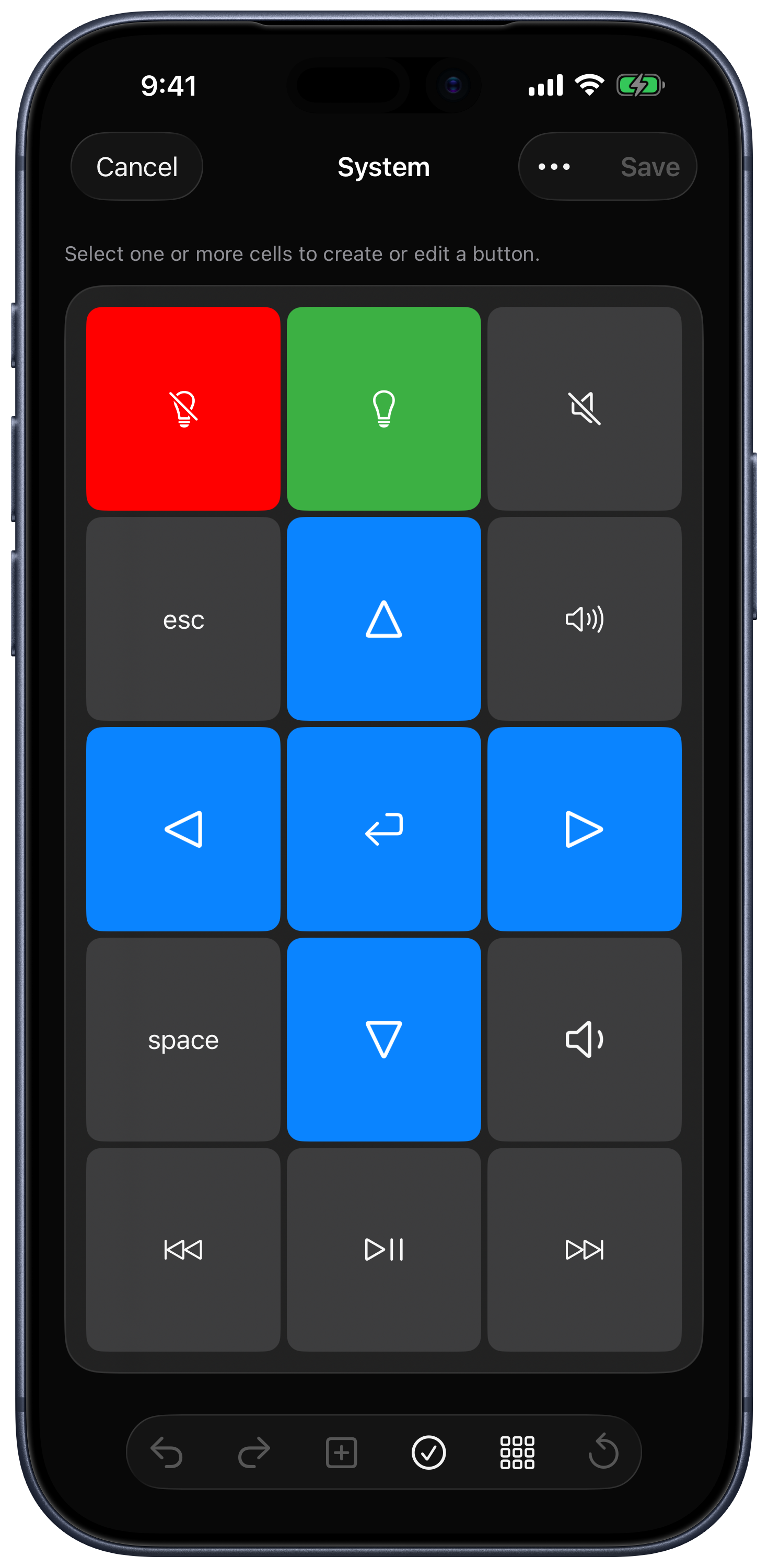
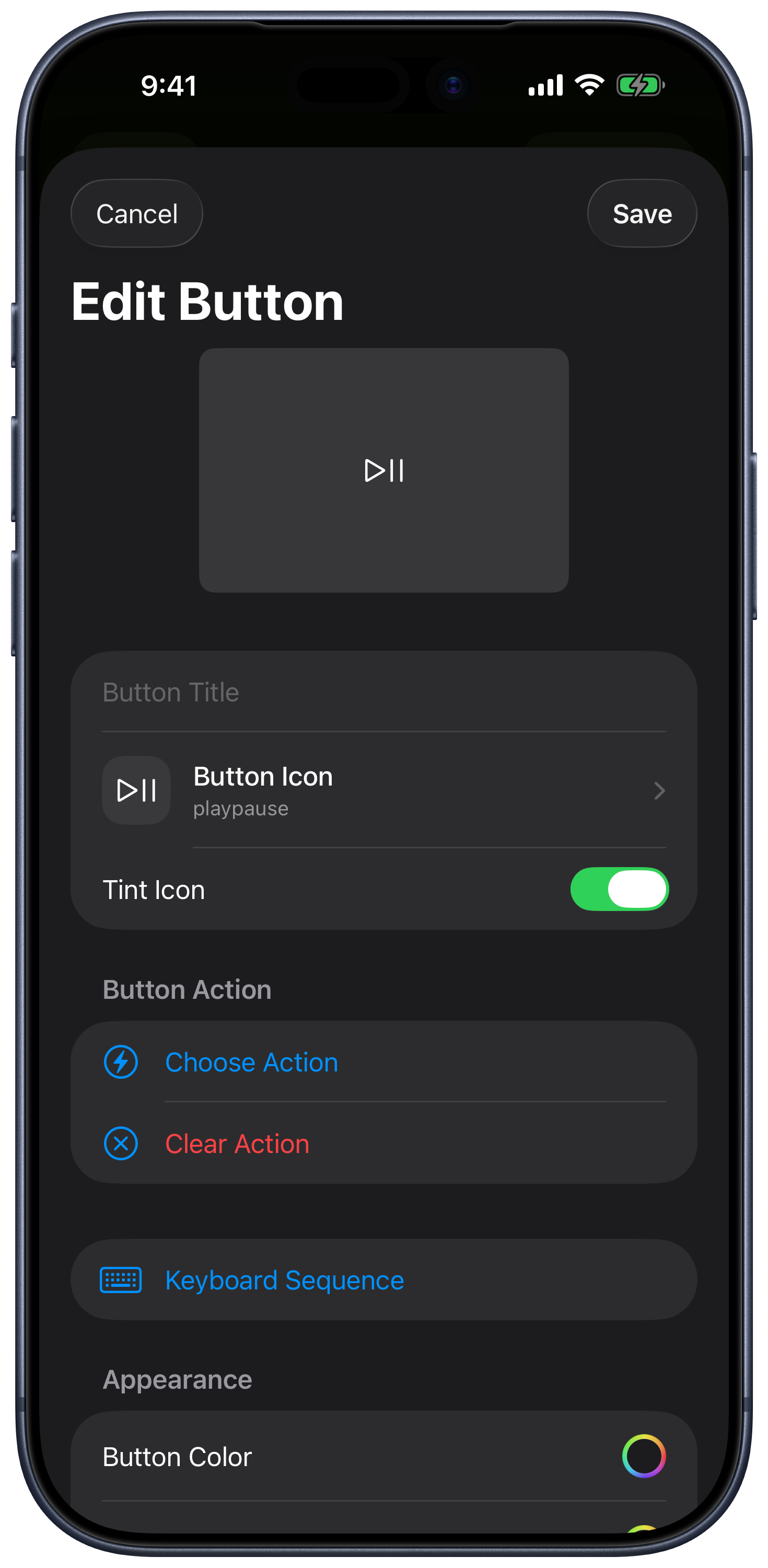
Here are three panels you could build around the commands your desktop apps support:
- A presentation panel: Large previous- and next-slide buttons, a start-presentation shortcut, and a button for the app’s screen-blanking command. Give the action you use most the largest target.
- An editing or music panel: Put your app’s shortcuts for play, stop, undo, redo, and frequently used tools on labeled buttons. Build a keyboard sequence with delays when an action needs several steps.
- A living-room panel: Keep playback, volume, navigation keys, a favorite website, and supported system actions together. Switch to the trackpad when you need to interact with something unexpected.
These are examples you can configure, rather than promises of dedicated integrations with every presentation, editing, or music app. Available commands depend on the target application and computer.
For Mac workflows, you can also associate a keypad with an app, with settings to follow the active Mac app or launch an associated app when you select its keypad. For deeper automation, custom helper actions support AppleScript on Mac and PowerShell on Windows. Scripted actions require setup on the computer; ordinary panel layout editing happens in the remote app.
Custom controls exist elsewhere, including in Unified Remote and Mobile Mouse. Our reason to choose Remote Mouse & Keyboard is the combination: a visual panel builder, flexible button layouts and actions, and everyday mouse, keyboard, and media control in one place. “Stream Deck-style” describes the button-panel idea; it does not imply compatibility with Elgato plugins or hardware.
Which app should you choose?
If all you need is a spare trackpad, start with the basic input features of the apps above. If air mouse control is the deciding feature, look at Mobile Mouse. If Linux or a large library of supplied remotes matters most, consider the alternatives that explicitly support them.
If you want your remote to grow with the way you use your Mac or PC, choose Remote Mouse & Keyboard. Start with playback and volume, add the shortcuts you repeat, then build a personal control panel without buying a separate button pad.
Get Remote Mouse & Keyboard, install the free Remote Helper, and follow the Mac and Windows connection guide. Once connected, open KeyPads to find a layout or build your own.