 Skip to content

Quick Answer
If a Samsung TV remote app says connection refused, the TV was usually found but rejected the remote connection. Keep the TV awake, approve the Samsung access prompt, enable iPhone Local Network permission, remove any stale saved Samsung TV in the app, and pair again on the same trusted Wi-Fi network.
Last updated: May 7, 2026.
What the Error Usually Means
| Symptom | Likely Cause |
|---|---|
| Connection refused appears immediately | Samsung TV rejected the app or old pairing record |
| TV appears but will not connect | Missed approval prompt, expired PIN, or blocked mobile device access |
| It worked before and now fails | TV firmware, router, or saved pairing state changed |
| It only fails on guest Wi-Fi | Router isolation blocks local device communication |
Step-by-Step Fix
- Turn the Samsung TV on and keep it awake.
- Put the iPhone or iPad and Samsung TV on the same trusted Wi-Fi network.
- Turn off VPN, Private Relay-like routing, guest Wi-Fi, or router client isolation while pairing.
- Open iPhone or iPad Settings, select Remote Control for TV, and enable Local Network.
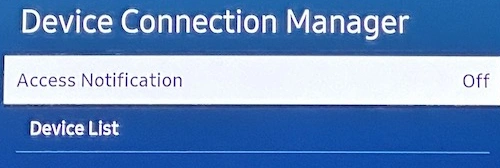
- On the Samsung TV, check Device Connection Manager or External Device Manager and allow mobile device connections when that option exists.
- In Remote Control for TV, delete the saved Samsung TV and add it again.
- Watch the TV screen for a PIN or approval prompt and approve the current request.
- If it still refuses, restart the Samsung TV, iPhone or iPad, and router, then retry from the Samsung setup guide.
Do Not Start Here
| Action | Why |
|---|---|
| Reinstalling the app first | It rarely fixes a TV-side access rejection |
| Typing an old PIN | Samsung PIN prompts can expire |
| Pairing while the TV sleeps | The TV may close or reject remote sessions |
| Pairing on hotel or guest Wi-Fi | Device-to-device traffic is often blocked |
Related Fixes
- Samsung TV not pairing with iPhone
- Why iPhone Local Network permission is required
- Why hotel Wi-Fi blocks TV remote apps
Samsung Connection Refused FAQ
Why does navigation not work after I approve the Samsung prompt?
The saved pairing may be stale. Remove the saved Samsung TV from the app, restart the TV, then pair again and approve the new prompt.
Does this mean the app is blocked by internet access?
Usually no. Samsung TV remote control is local network control. The app and TV need to reach each other on the same trusted network.
Can the physical remote still work when the app is refused?
Yes. The physical remote can still work because it uses a different control path than a local network remote app.
Common questions
Why does my Samsung TV remote app say connection refused?
The Samsung TV is reachable on the network, but it rejected the remote session. Common causes are a missed TV approval prompt, Samsung access settings, stale pairing, expired PIN, blocked Local Network permission, or router isolation.
Is connection refused the same as TV not found?
No. TV not found usually means discovery failed. Connection refused usually means the TV was found but rejected or closed the connection.
Should I reinstall the app?
Usually no. First check the TV approval prompt, Samsung access settings, Local Network permission, and remove the stale saved TV before pairing again.